How to Set Up Advantage Hosting Email in Outlook, Thunderbird, iPhone and Android
Setting up your Advantage Hosting email on your computer, smartphone or tablet is straightforward once you have the correct server settings.
Whether you use Advantage Personal Email or Advantage Business Email, you can connect your mailbox to popular email applications, including Microsoft Outlook, Mozilla Thunderbird, Apple Mail and Android email apps.
This guide explains the recommended settings, walks through the most common setup methods and helps you troubleshoot connection problems.
Before you begin
Make sure you have:
- Your complete email address, such as
name@yourdomain.ca - Your email account password
- A working internet connection
- Your preferred email application
If you haven’t created your mailbox yet, sign in to the Advantage Hosting Client Area to manage your services or request assistance.
Recommended email settings
For most customers, we recommend IMAP, which keeps your email folders synchronized across your devices.
| Setting | Value |
|---|---|
| Incoming mail protocol | IMAP |
| Incoming mail server | imap.emailarray.com |
| IMAP port | 993 |
| IMAP security | SSL/TLS |
| Outgoing mail protocol | SMTP |
| Outgoing mail server | smtp.emailarray.com |
| SMTP port | 465 |
| SMTP security | SSL/TLS |
| Username | Your full email address |
| Password | Your mailbox password |
| SMTP authentication | Required |
Important: Your outgoing mail server must use authentication. Enter your complete email address and password, even if your email application treats outgoing server credentials as optional.
Should you use IMAP or POP3?
IMAP is recommended. Your Inbox, Sent, Drafts and other server folders remain synchronized between your devices.
POP3 is available for customers who specifically need it:
| POP3 setting | Value |
|---|---|
| Incoming server | pop.emailarray.com |
| Port | 995 |
| Security | SSL/TLS |
POP3 generally downloads messages rather than providing the same folder synchronization as IMAP. If you regularly use more than one device, choose IMAP.
Set up Advantage Hosting email in Microsoft Outlook
The exact menus depend on your Outlook version.
For Classic Outlook on Windows:
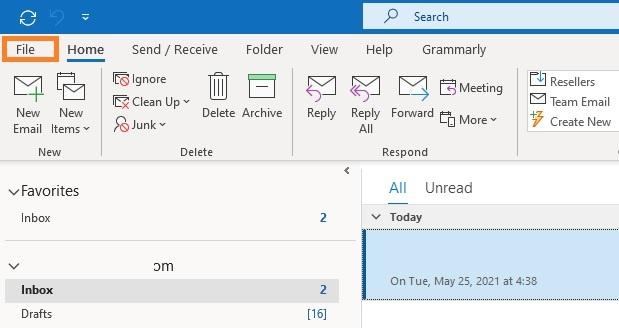
- Open Outlook and select File → Add Account.
- Enter your complete Advantage Hosting email address.
- Choose the option to configure your account manually, if offered.
- Select IMAP as the account type.
- Enter the incoming and outgoing server settings shown above.
- Enter your mailbox password.
- Ensure SMTP authentication is enabled.
- Complete setup and send a test message.
A note about New Outlook for Windows
New Outlook handles many IMAP accounts differently from Classic Outlook and may synchronize mailbox data through Microsoft’s cloud infrastructure.
For customers who prefer a more direct IMAP connection to their email provider, we recommend Classic Outlook or another compatible IMAP application.
If Outlook reports a synchronization error, confirm which Outlook version you’re using before changing passwords or server settings.
Set up Advantage Hosting email in Mozilla Thunderbird
Thunderbird is a free email application available for Windows, macOS and Linux.
- Open Thunderbird.
- Choose Add Mail Account.
- Enter your name, full email address and mailbox password.
- Click Continue to search for settings.
- If automatic detection succeeds, confirm that IMAP is selected.
- If necessary, choose Configure manually.
- Enter
imap.emailarray.comon port993with SSL/TLS. - Enter
smtp.emailarray.comon port465with SSL/TLS. - Use Normal password authentication and your full email address for both usernames.
- Click Re-test, then Done.
Thunderbird will begin synchronizing your mail folders.
Tip: If you have a large mailbox, the initial download may take considerable time. Allow synchronization to finish before assuming messages are missing.
Set up Advantage Hosting email on iPhone or iPad
For a standard IMAP account:
- Open Settings.
- Navigate to the Mail account settings. On newer iOS versions, this is generally under Apps → Mail → Mail Accounts.
- Choose Add Account.
- Select Other, then Add Mail Account, where available.
- Enter your name, email address, password and account description.
- Select IMAP.
- Enter the incoming and outgoing mail server settings.
- Use your full email address as the username.
- Save the account.
Your device should begin synchronizing email.
Advantage Business Email customers
Advantage Business Email also supports ActiveSync for synchronizing email, calendars and contacts in compatible applications.
If you want these additional synchronization features, ask Advantage Hosting for the appropriate Business Email setup details rather than configuring a second account unnecessarily.
Set up Advantage Hosting email on Android
Android setup menus vary between manufacturers and applications.
For Gmail or another compatible Android email app:
- Open the email application.
- Choose Add Account.
- Select Other or Personal (IMAP).
- Enter your full email address and password.
- Select IMAP if asked.
- Enter
imap.emailarray.com, port993, using SSL/TLS. - Enter
smtp.emailarray.com, port465, using SSL/TLS. - Enable outgoing authentication.
- Complete setup and test sending and receiving.
For Advantage Business Email, compatible ActiveSync applications may also support calendar and contact synchronization.
Advantage Personal Email vs. Advantage Business Email
Both Advantage Hosting email products support standard IMAP and SMTP connections.
| Feature | Personal Email | Business Email |
|---|---|---|
| Send and receive email | Yes | Yes |
| IMAP synchronization | Yes | Yes |
| POP3 access | Yes | Yes |
| SMTP authenticated sending | Yes | Yes |
| ActiveSync for compatible devices | Not included | Available |
| Calendar and contact synchronization | Depends on application and configuration | Available with supported synchronization methods |
Personal Email is suitable for customers who primarily need reliable email access through standard applications.
Business Email adds enhanced synchronization capabilities for customers who need email, calendars and contacts across compatible devices.
Troubleshooting common setup problems
I can receive email but cannot send
Check the outgoing SMTP server, port and authentication settings.
Use smtp.emailarray.com, port 465, with SSL/TLS. Make sure SMTP authentication is enabled using your full email address and password.
My email password is rejected
Verify that you’re using the mailbox password rather than your Advantage Hosting Client Area password.
Also confirm that the username is your complete email address, not just the portion before the @ symbol.
My folders aren’t appearing
Confirm that the account uses IMAP rather than POP3.
Some email applications also require you to subscribe to server folders or refresh their folder list.
My email is downloading slowly
Large mailboxes can take hours or longer to synchronize, depending on the connection and application.
Avoid repeatedly deleting and recreating the account while the initial synchronization is still running.
I changed email providers and old messages are missing
Setting up a new email account does not automatically migrate messages stored only on an old server or locally in an email application.
If you are moving existing email to Advantage Hosting, contact us about migration options before removing your old account.
Need assistance?
If your email application isn’t connecting or you’re unsure which settings to use, Advantage Hosting can help you identify the correct configuration.
Sign in to the Advantage Hosting Client Area and open a support ticket, or visit our Contact page.
Advantage Hosting
Canadian-owned. Canadian-powered.