Moving Your Email to Advantage Email: A Step-by-Step Guide
Moving to a new email provider doesn’t mean you have to lose your existing messages, folders or email address.
Whether you’re moving from cPanel email, an older hosting provider or another email service, Advantage Hosting can help you make the transition to Advantage Email.
We offer free email migration assistance, and this guide explains what to expect, how POP and IMAP differ, and how to reconnect your favourite email applications after the move.
Before you begin: Don’t delete your old email account
This is the most important precaution when changing email providers.
Do not remove your existing email account from Outlook, Thunderbird, Apple Mail or another application until your old messages have been safely transferred or backed up.
Some email applications store messages locally on your computer. Deleting the account prematurely could make those messages difficult to recover.
If you’re moving to Advantage Email, contact us before making changes to your existing mailboxes or DNS settings.
Understanding POP and IMAP
POP and IMAP are two different ways email applications retrieve messages from a mail server.
What is POP?
POP stands for Post Office Protocol, commonly called POP3.
It is an older method of accessing email that typically downloads messages from the mail server to your computer.
Depending on your settings, messages may be removed from the server after downloading or retained there for a period of time.
POP can be useful when you primarily use one computer and want to maintain local copies of your email.
However, it has limitations:
- Messages may exist only on one computer.
- Sent messages and custom folders usually aren’t synchronized between devices.
- Reading or organizing messages on one device doesn’t necessarily update another.
- Moving to another email provider can require additional work to preserve locally stored messages.
What is IMAP?
IMAP stands for Internet Message Access Protocol.
IMAP keeps your mailbox and server folders synchronized across compatible devices.
For example, if you read a message on your phone, it will normally appear as read in Thunderbird or Outlook as well.
If you create a folder or move a message, that change can synchronize across your connected devices.
IMAP is generally the recommended option for Advantage Email customers.
POP versus IMAP: What’s the difference?
| Feature | POP3 | IMAP |
|---|---|---|
| Access email on multiple devices | Limited | Yes |
| Synchronize folders | No | Yes |
| Synchronize read/unread status | Generally no | Yes |
| Store messages on server | Optional, depending on settings | Normally yes |
| Offline access | Yes, for downloaded mail | Yes, when cached locally |
| Recommended for Advantage Email | Only for specific needs | Yes |
Our recommendation: Use IMAP unless you have a particular reason to continue using POP.
How Advantage Hosting handles your email migration
When you request a move to Advantage Email, we’ll help determine the best migration method for your existing mailbox.
For email already stored on an IMAP server, messages and folders can often be transferred directly between the old and new services.
For POP accounts, the situation can be different.
If messages have been downloaded to your computer and removed from the old server, they may need to be imported from your local email application.
This is why we recommend checking your current setup before starting.
Our typical migration process
- Review your existing email service. We determine where your messages are stored and whether your current account uses POP or IMAP.
- Create your Advantage Email mailboxes. We configure the new mailboxes and confirm the available storage capacity.
- Transfer existing server-stored messages. Where supported, we migrate messages and folders from the old provider.
- Coordinate mail delivery changes. We update the necessary DNS and mail-routing records at the appropriate time.
- Configure your email applications. You’ll receive the connection settings for Outlook, Thunderbird or your mobile devices.
- Verify the migration. We check that email can be sent and received and that the expected folders and messages are available.
Depending on the source system, locally stored messages, contacts, calendars or archives may require additional steps.
Switching from POP to IMAP
If your existing email account uses POP, we recommend creating a new IMAP connection rather than simply changing the server address of the old POP account.
Changing a POP account’s incoming server name does not convert its locally stored messages into an IMAP mailbox.
The safest general approach is:
- Back up your existing email application data.
- Confirm that your new Advantage Email mailbox has been created.
- Add the new mailbox to your email application using IMAP.
- Confirm that the new account connects successfully.
- Transfer or import any messages stored only in the old POP account.
- Allow synchronization to complete.
- Verify the messages through the new mailbox’s webmail interface.
- Keep the old account or backup until you’re certain everything has transferred.
For large mailboxes, move messages in manageable batches rather than attempting to upload years of email all at once.
Moving POP messages in Thunderbird
Thunderbird is particularly useful because it can display old POP messages and a new IMAP mailbox side by side.
After backing up your Thunderbird profile:
- Open Thunderbird and locate your existing POP account.
- Add your new Advantage Email account using IMAP.
- Confirm that both accounts appear in the folder pane.
- Select a small group of messages from the old POP account.
- Copy them into an appropriate folder under the new IMAP account.
- Allow Thunderbird to upload and synchronize the messages.
- Check the new mailbox through webmail to confirm that the messages arrived.
- Continue with the remaining folders and messages.
Use Copy rather than Move during the initial migration so the original messages remain available until verification is complete.
If your existing POP account contains thousands of messages, contact Advantage Hosting for assistance before attempting a large transfer.
Moving POP messages in Outlook
Outlook stores local email data in files such as PST archives, depending on the account type and version.
Before making changes:
- Back up your Outlook data.
- Keep the existing POP account and its data file intact.
- Add Advantage Email as a new IMAP account in Classic Outlook.
- Confirm that the new account can send and receive email.
- Copy existing messages or folders from the old account or PST file into the new IMAP mailbox.
- Allow synchronization to finish and verify the messages through webmail.
For a large mailbox, use smaller batches and verify progress.
Important: New Outlook and Classic Outlook have different account and data-file capabilities. If you need to migrate a POP archive or PST file, confirm which Outlook version you’re using before starting.
Advantage Email server settings
For standard Advantage Personal Email and Advantage Business Email connections, use the following settings.
| Setting | Value |
|---|---|
| Account type | IMAP |
| Incoming server | imap.emailarray.com |
| Incoming port | 993 |
| Incoming security | SSL/TLS |
| Outgoing server | smtp.emailarray.com |
| Outgoing port | 465 |
| Outgoing security | SSL/TLS |
| Username | Your complete email address |
| Password | Your Advantage Email mailbox password |
| Outgoing authentication | Enabled |
These are the mail service’s technical connection addresses. Your email address remains associated with your own domain.
Optional POP3 settings
If you specifically need POP3:
- Incoming server:
pop.emailarray.com - Port:
995 - Security: SSL/TLS
We recommend IMAP for most customers.
Updating your email application
Microsoft Outlook (Classic)
If you’re moving from POP to IMAP, add a new account rather than trying to change the existing account’s protocol.
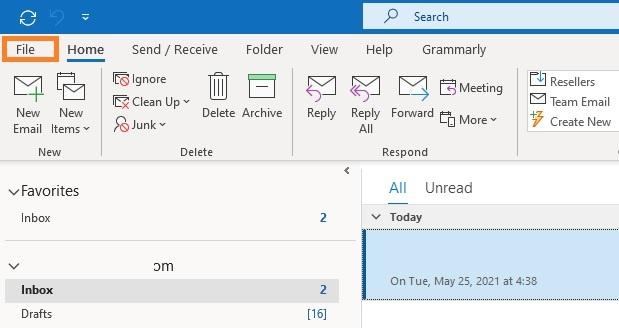
- Open Outlook and select File → Add Account.
- Enter your full email address.
- Choose the manual setup option, if required.
- Select IMAP.
- Enter the Advantage Email server settings.
- Enter your mailbox password.
- Complete setup and send a test message.
For an existing IMAP account that simply needs updated server settings, use File → Account Settings → Account Settings, select the account and review its server configuration.
Do not remove your previous account until any locally stored messages have been preserved.
Mozilla Thunderbird
- Open Account Settings.
- Choose Account Actions → Add Mail Account.
- Enter your email address and mailbox password.
- Choose Configure manually if automatic detection doesn’t find the correct settings.
- Select IMAP and enter the Advantage Email server details.
- Confirm SMTP authentication is enabled.
- Finish setup and allow your folders to synchronize.
If you are moving from POP, leave the old account in place until you have copied and verified your messages.
Apple Mail on macOS
- Open Mail.
- Select Mail → Add Account.
- Choose the option to add another mail account.
- Enter your email address and password.
- If automatic setup doesn’t succeed, enter the IMAP and SMTP server settings manually.
- Complete setup and test sending and receiving.
Keep your previous mailbox and any locally stored messages until the migration is verified.
iPhone or iPad
- Open Settings → Apps → Mail → Mail Accounts.
- Select Add Account.
- Choose the option for another mail account.
- Enter your email address and password.
- Select IMAP if manual configuration is required.
- Enter the incoming and outgoing Advantage Email server details.
- Save and test the account.
Menu names can vary slightly depending on your iOS version.
Android
For Gmail or another compatible Android email application:
- Open the email application.
- Select Add Account.
- Choose Other or Personal (IMAP).
- Enter your email address and password.
- Enter the Advantage Email IMAP and SMTP settings if requested.
- Complete setup and test sending and receiving.
The exact steps depend on your device and email application.
What about contacts and calendars?
IMAP synchronizes email messages and mail folders. It does not, by itself, synchronize contacts or calendars.
Advantage Business Email provides additional synchronization capabilities, including ActiveSync support for compatible applications.
If you need to move calendars or contacts from your previous provider, tell us before the migration so we can review the available options.
Common migration questions
Will I keep my existing email address?
Usually, yes. If you control the domain and are moving its email hosting to Advantage Email, you can normally retain the same email addresses.
Will my old messages appear automatically?
Messages already stored on the old IMAP server can often be migrated. Messages stored only on a computer may need a separate import.
Should I delete my old account after changing providers?
Not immediately. First confirm that the expected messages and folders are accessible in Advantage Email and that any local archives have been preserved.
Will changing my DNS records transfer old messages?
No. DNS changes direct new mail to the appropriate server. They don’t copy historical messages or local archives.
Can I use Outlook and Thunderbird with Advantage Email?
Yes. Both support standard IMAP and SMTP connections, although available features depend on the application and version.
Is email migration free?
Advantage Hosting offers free email migration assistance for customers moving to Advantage Email.
The precise steps depend on the existing provider, available account access, mailbox size and whether messages are stored on the server or locally.
Ready to move to Advantage Email?
Whether you’re leaving another email provider, upgrading from cPanel email or switching from POP to IMAP, Advantage Hosting can help you plan the transition.
We offer Advantage Personal Email for everyday professional communication and Advantage Business Email for customers who need additional synchronization features.
To get started, sign in to the Advantage Hosting Client Area and request a new Advantage Email service or contact support about migrating your existing mailboxes.
Free email migration assistance is available.
Don’t delete your old mailbox or change your mail-routing settings until the migration has been coordinated.
Advantage Hosting. Canadian-owned. Canadian-powered.